- What Is MT5 and How Does the Trading Platform Work?
- Getting Started: Install MetaTrader 5 and Connect Your Account
- Set Up the MT5 Trading Platform Workspace
- How to Read a Forex Chart and Add Technical Indicators
- How Do I Place and Manage Trades on MetaTrader 5?
- Manage Risk Before Funding a Live Account
- Automate Trading With Expert Advisors and MQL5 Tools
- Use the MT5 Mobile App Without Rebuilding Your Workflow
- Common Beginner Mistakes and MetaTrader 5 Help
- Platform Fluency Comes Before More Complex Trading Strategies
- Start Trading With a Clear MT5 Workflow
The first launch of MetaTrader 5 can feel busier than trading. Prices flicker and unfamiliar controls surround the chart. Yet a beginner needs only part of the terminal to place a protected demo order.
This step-by-step guide runs from installation to execution. It separates the software from the broker and explains the minimum deposit. For anyone new to trading, platform fluency improves the trading experience, but it does not remove market risk.
What Is MT5 and How Does the Trading Platform Work?
MT5 is a multi-asset trading platform developed by MetaQuotes. It displays prices, supports analysis, sends orders, and manages positions. The broker supplies the trading server, available markets, spreads, leverage, contract specifications, and execution conditions.
Downloading the software does not create a funded brokerage account. Available stocks, commodity contracts, currency pairs, and index products depend on the provider, even though the software is multi-asset.
Versus Trade uses the terminal for online trading in Forex and contracts for difference. Each financial instrument has its own contract size and trading hours.
| Element | Who controls it |
| Interface, charts, indicators, and order controls | MetaQuotes software |
| Available markets, prices, spreads, and leverage | The broker |
| Direction, volume, and protective levels | The trader |
| Deposits, withdrawals, and account verification | Broker infrastructure |
Is MetaTrader 5 Good for Beginners?
Yes, provided the first sessions stay focused. A new user can learn the essential workflow on a demo account: find a symbol, read its specification, open a chart, place an order, add protective levels, and close the position. The learning curve becomes steeper when indicators, automation, and signal services are introduced before those basics feel familiar.
What Are the Differences Between MetaTrader 4 and MetaTrader 5?
MT4 was designed mainly around forex trading, while MT5 supports broader multi-asset infrastructure. The desktop MT5 terminal has 21 timeframes rather than MT4’s nine, six pending-order types rather than four, a built-in Economic Calendar; and a multi-threaded Strategy Tester. Their code bases also differ: programs written in MQL4 do not run natively as MQL5 applications. Available markets still depend on the connected broker.
Getting Started: Install MetaTrader 5 and Connect Your Account
Download the MT5 Platform for Windows
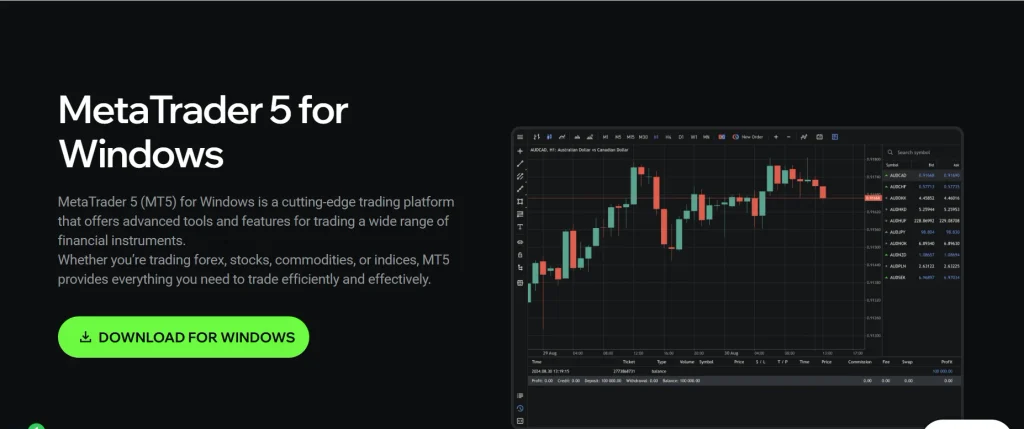
The Versus Trade Windows page is the direct starting point for its desktop terminal. After installation, the platform still needs the trading login, password, and exact server name. A generic MetaQuotes demo server and a Versus Trade server are not interchangeable.
If prices do not update after login, check the server before resetting the password. A correct login sent to the wrong server will not connect. This unglamorous part of getting started determines where every later action goes.
Head of Payments, Versus Trade — Olga Khylko
Demo Account or Live Account?
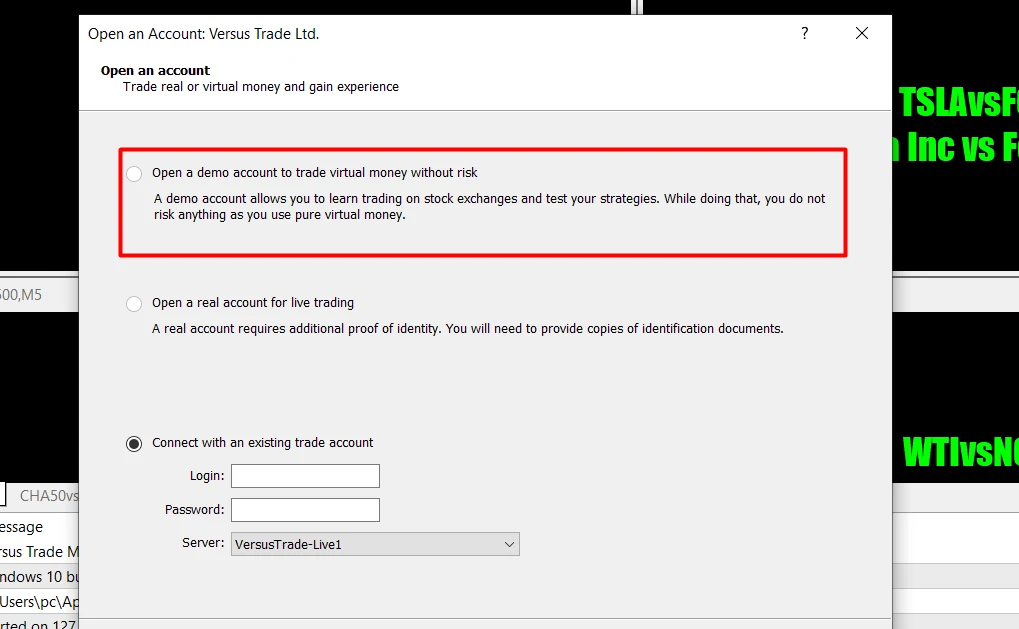
A demo account uses virtual funds while preserving the core process of selecting a symbol, submitting an order, and managing a position. A live environment adds real losses and conditions a simulation may not reproduce perfectly. Slippage, liquidity, and the pressure attached to actual money can differ even when the buttons look the same.
What Is the Minimum Deposit for MT5?
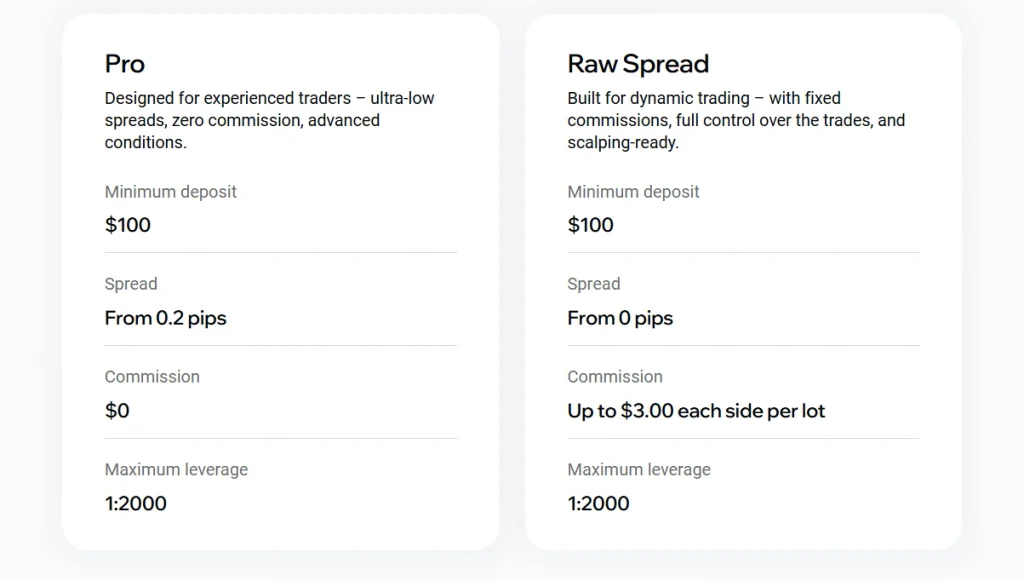
Explore the Versus Trade platform and discover the tools traders use to analyze markets, manage risk, and improve performance.

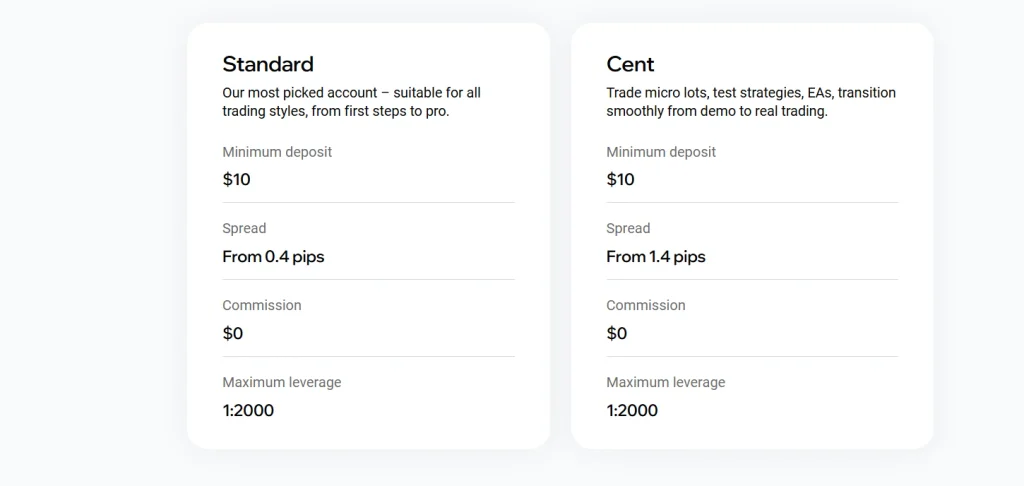
There is no universal minimum deposit. MetaQuotes supplies software, not funding rules. Versus Trade currently lists $10 for its Standard account and $100 for its professional range. These are entry thresholds, not position-size recommendations. Leverage, contract size, and stop distance can expose a small balance quickly.
Set Up the MT5 Trading Platform Workspace
The Five Areas a Beginner Actually Needs
The desktop layout becomes easier once every panel has a job:
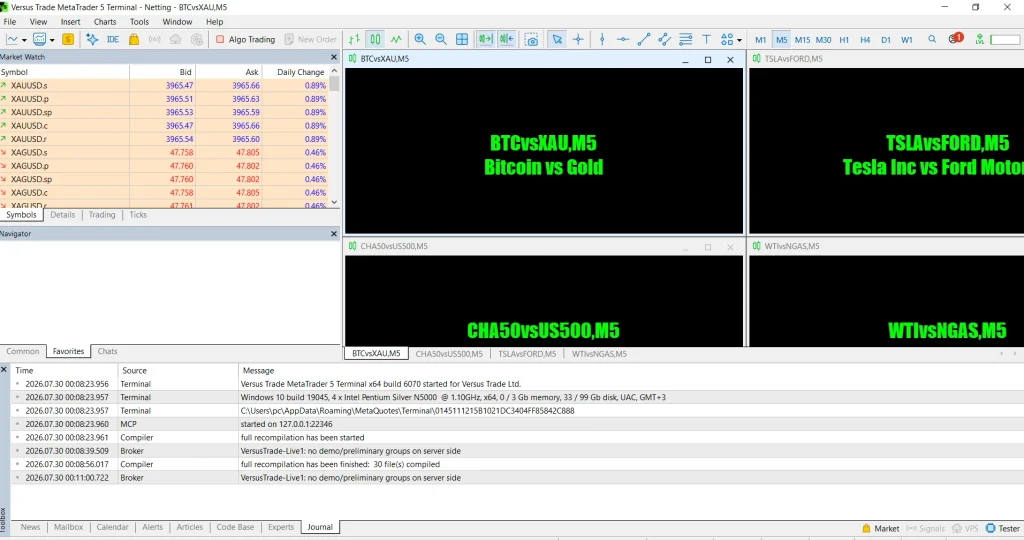
- Market Watch window: displays available symbols, Bid and Ask prices, statistics, and access to contract specifications.
- Navigator: holds accounts, technical indicators, scripts, and expert advisors.
- Chart window: displays price action, drawing objects, indicators, and visible trade levels.
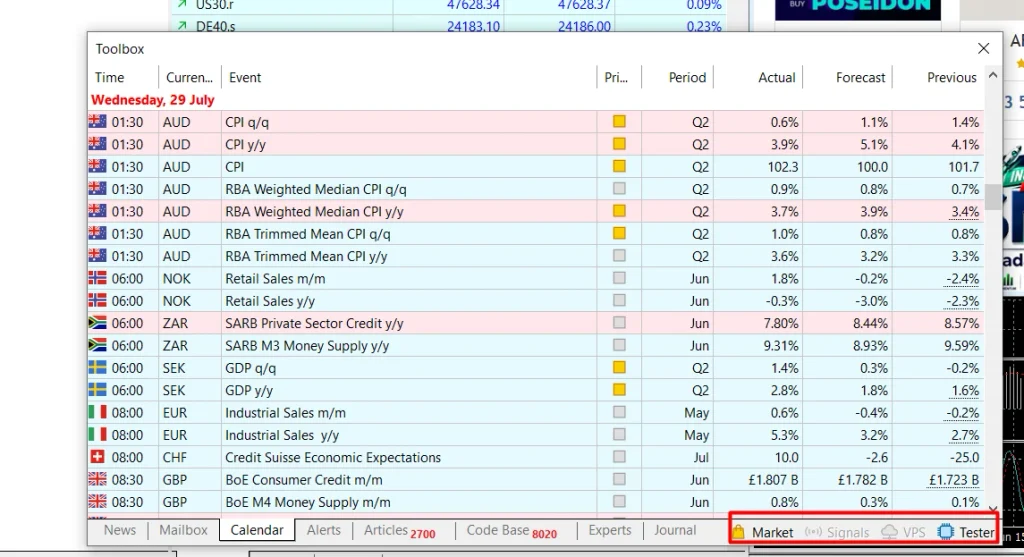
- Toolbox: shows open trade positions, pending orders, account history, news, logs, and an alert.
- Toolbar: provides shortcuts for chart types, drawing controls, timeframe changes, and New Order.
The lower panel is called the Toolbox, although older tutorials often call it the Terminal. Ctrl+T toggles it; Ctrl+M toggles Market Watch.
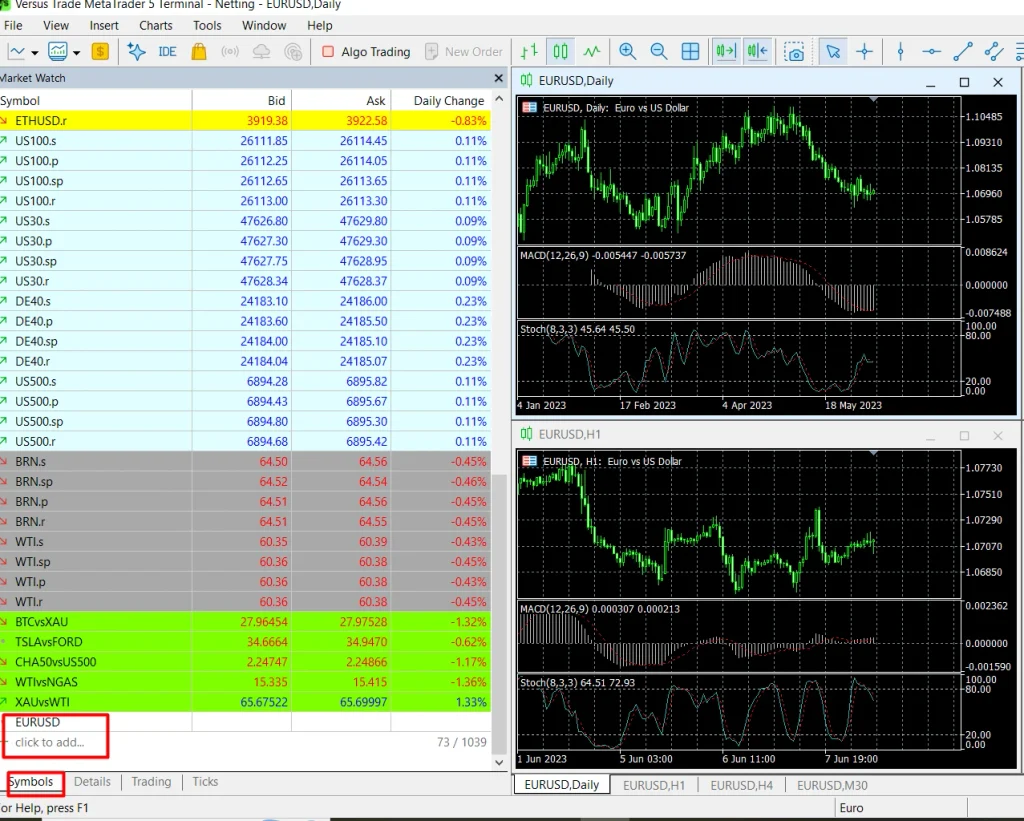
Add a Symbol Through Market Watch
Not every symbol appears by default. The plus field at the bottom of Market Watch searches by name, while the right-click menu opens the broader Symbols window. Dragging an instrument into the workspace opens its price graph. Holding Ctrl while dragging opens it in a separate chart window without replacing the active chart.
Symbols can carry provider-specific suffixes. Symbols such as EURUSD and a broker-specific EURUSD variant may refer to the same currency pair, but their contract specifications can differ.
Save a Clean Workspace
Templates preserve one graph’s appearance and indicators; profiles store groups of open graphs. A clean candlestick layout is easier to read.
How to Read a Forex Chart and Add Technical Indicators
Choose a Chart Type and Timeframe
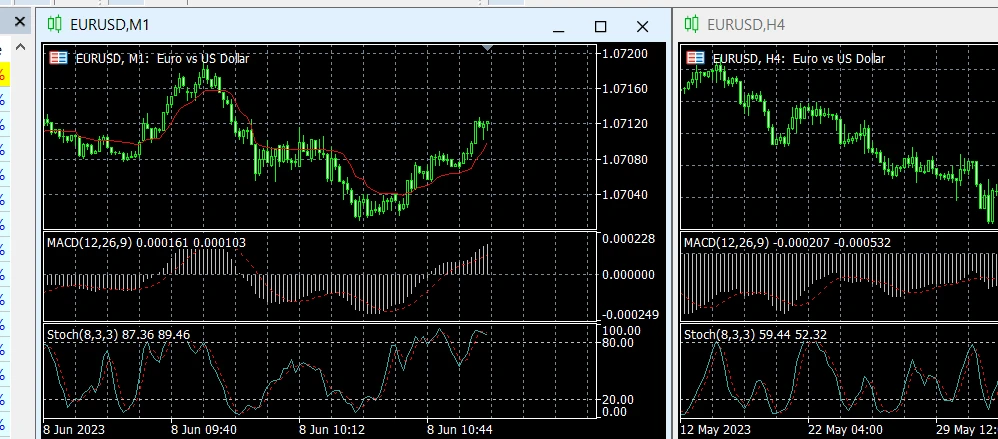
Bar, line, and candlestick views organize the same market differently. Candles show the open, high, low, and close of each period. The desktop MT5 platform offers 21 timeframes, from one minute to one month.
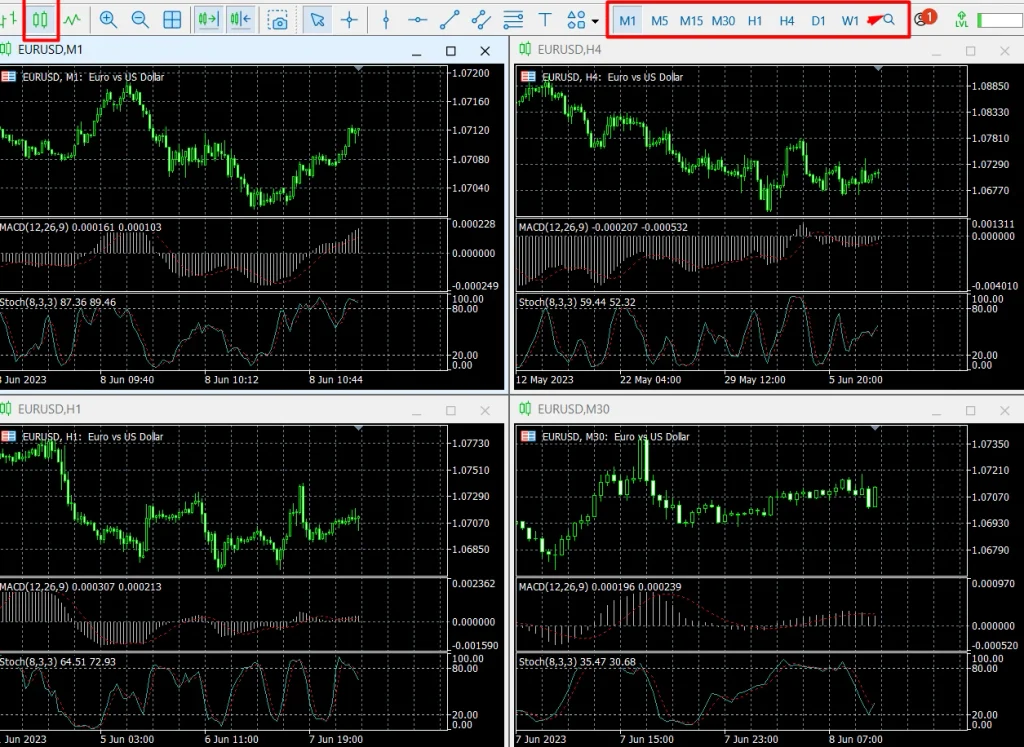
Changing the period changes how price is grouped, not the reliability of a signal. Bid and Ask also matter. Their difference is the spread, and the graph may show a different side of the quote from the one used for execution.
Add One Indicator Without Cluttering the Screen
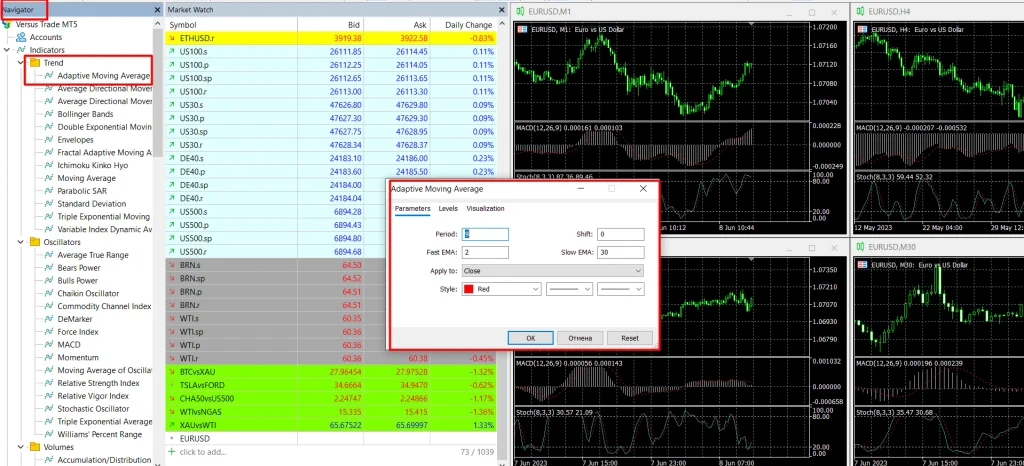
A Moving Average is enough to learn the process: drag it from the Navigator, change its period, inspect the result, and remove it through the Indicators List.
The desktop MetaTrader 5 platform currently includes 38 built-in indicators, 44 analytical objects, and price charts that can display 21 periods. The often-repeated claim of “80+ built-in indicators” combines indicators with analytical objects and is therefore misleading.
Technical and Fundamental Analysis Serve Different Jobs
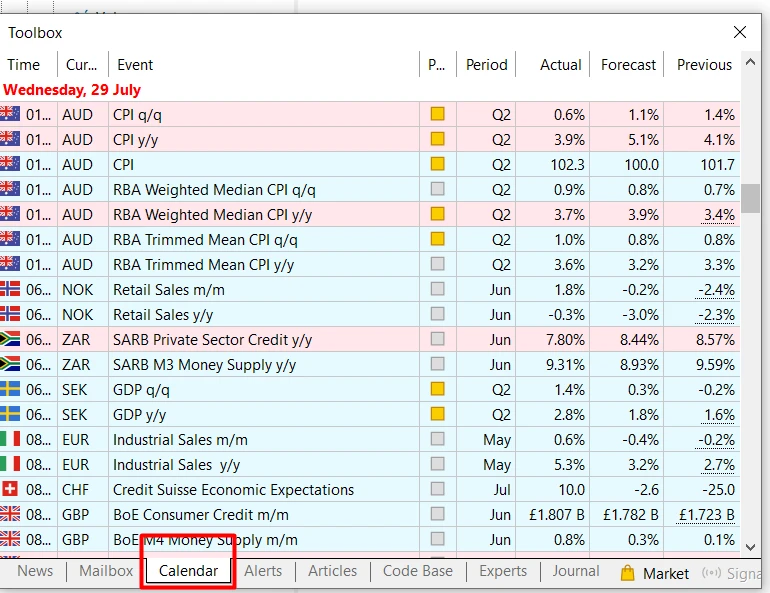
Technical analysis studies price data with indicators and objects. Fundamental analysis follows economic releases, central-bank decisions, and company developments. The terminal includes an economic calendar; live news can depend on the provider. Neither approach guarantees the next move.
How Do I Place and Manage Trades on MetaTrader 5?
Read the Order Ticket Before Sending It
F9 opens the order window, also available through Tools > New Order. Symbol chooses the market, volume sets the contract quantity, Type selects a market order or pending instruction, and the protective fields hold stop-loss and take-profit levels.
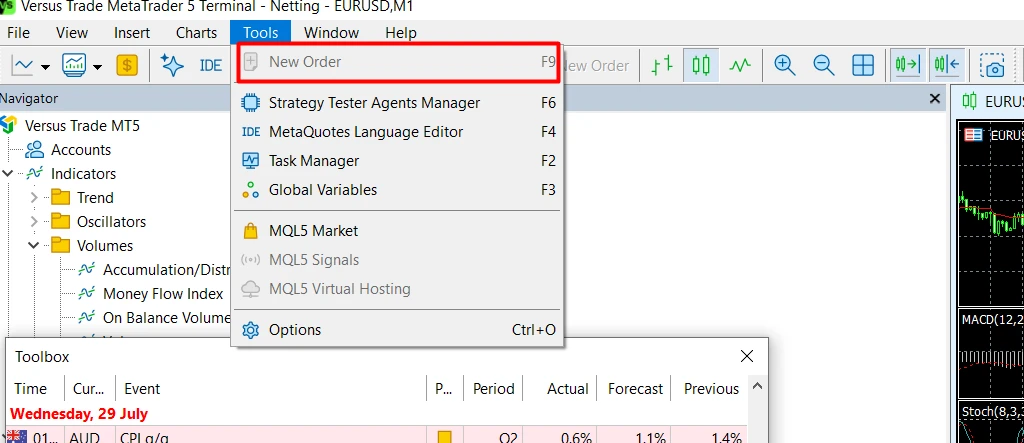
Volume is not the cash amount at risk. A volume of 0.01 represents different exposure across a currency pair, metal, or equity CFD. Contract specifications and stop distance matter more than the number alone.
Place Your First Trade Step by Step
The first trade should test the workflow, not a profit prediction:
- Select the intended instrument in Market Watch and open New Order.
- Confirm that the correct symbol and account are active.
- Choose the required entry from the available order types.
- Enter the planned volume after checking the contract specification.
- Add a stop-loss and take-profit level where the broker’s minimum-distance rules permit them.
- Select Buy for long exposure or Sell for short exposure.
- Confirm the position in the Toolbox and check its entry price, protective levels, and floating result.
A market order requests execution under the mode configured for that instrument. Depending on the broker and execution mode, the final price may differ from the quote visible when the order was sent, or the request may be rejected or requoted.
| Order | What it does | Typical use |
| Market order | Requests execution under the instrument’s current execution mode | Entering without waiting for another level |
| Buy or Sell Limit | Waits for a specified, more favorable entry | Entering on a pullback |
| Buy or Sell Stop | Activates beyond a specified price | Entering after a breakout |
| Buy or Sell Stop Limit | Places a limit order after a stop level is reached | Adding more control to a conditional entry |
Modify or Close the Position
Stop-loss and Take profit levels can be modified from the position’s context menu in the Toolbox. When trade levels are displayed, the same protective levels can be adjusted by dragging them on the chart. Visible protective lines can also be dragged on the graph. One-click trading removes a confirmation step, making it unforgiving while the controls are unfamiliar.
[Screenshot needed: Open demo position in the Toolbox Trade tab with entry price, current price, SL, TP, and floating P/L visible. Hide the login and all personal data.]
Ready to practice the workflow? Open a Versus Trade demo environment and test the order process with virtual funds before moving to a live account.
Manage Risk Before Funding a Live Account
Minimum Deposit Is Not a Position-Size Recommendation
The platform displays balance, equity, margin, and floating results. It cannot decide what loss is acceptable. Identical deposits can produce radically different exposure through instrument choice, leverage, volume, and stop distance.
That distinction matters in CFD trading, where leverage magnifies favorable and adverse moves. A $10 threshold says nothing about whether the balance can support a trade. The specification, spread, margin, and planned exit shape the result.
What MT5 Can and Cannot Control
Protective orders are valuable trading tools, not guarantees of a precise fill. A stop-loss triggers an exit, but a gap or fast market may move execution to the next available price.
Can I Make Money on MetaTrader 5?
A trader can make money through orders sent from MT5, but the platform itself does not create profits. Results come from price movement, position size, costs, execution, and the trader’s decisions. Leverage can magnify gains and losses, while a polished indicator or automated strategy can still fail. A demo account can test the operating process, but simulated results do not establish what a live account will earn.
Automate Trading With Expert Advisors and MQL5 Tools
Expert Advisors Are Programs, Not Guaranteed Strategies
Director of Site Content, StockCharts.com — Jayanthi Gopalakrishnan,
commenting on Jacinta Chan Phooi m’Ng’s Algorithm Trading 101: Trading Made Simple for Everyone.
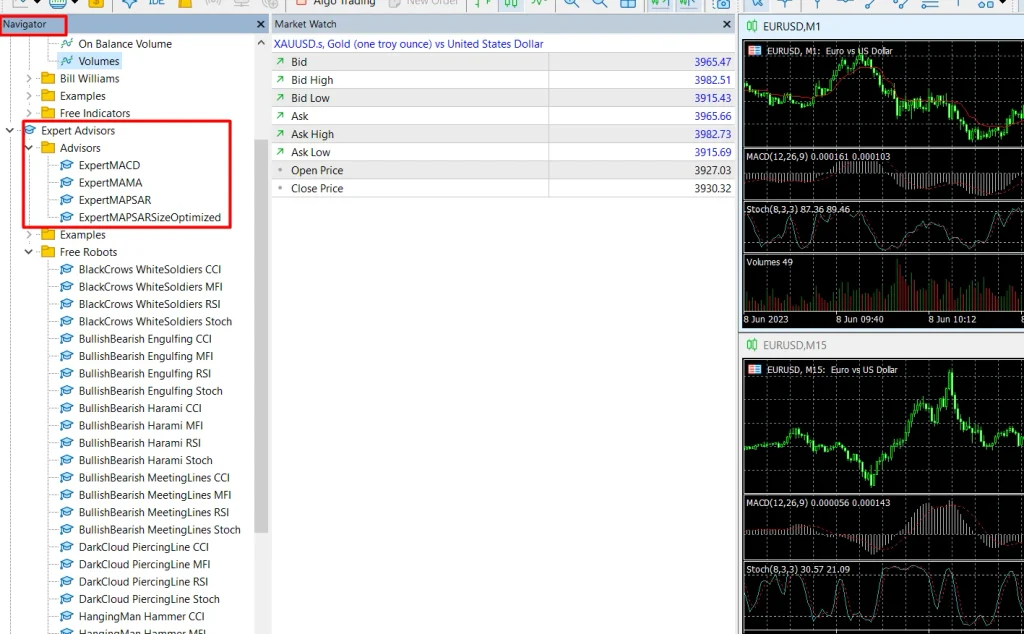
EAs, or Expert Advisors, automate trading through programmed rules. These trading robots can analyze data and submit orders. The Strategy Tester examines an EA on historical data, but a favorable backtest does not establish future behavior.
Algorithmic trading is more demanding than installing a file. Data quality, costs, changing volatility, and overfitting all affect the result. An EA should be understood before it receives permission to trade.
Market, Signals, and Virtual Hosting
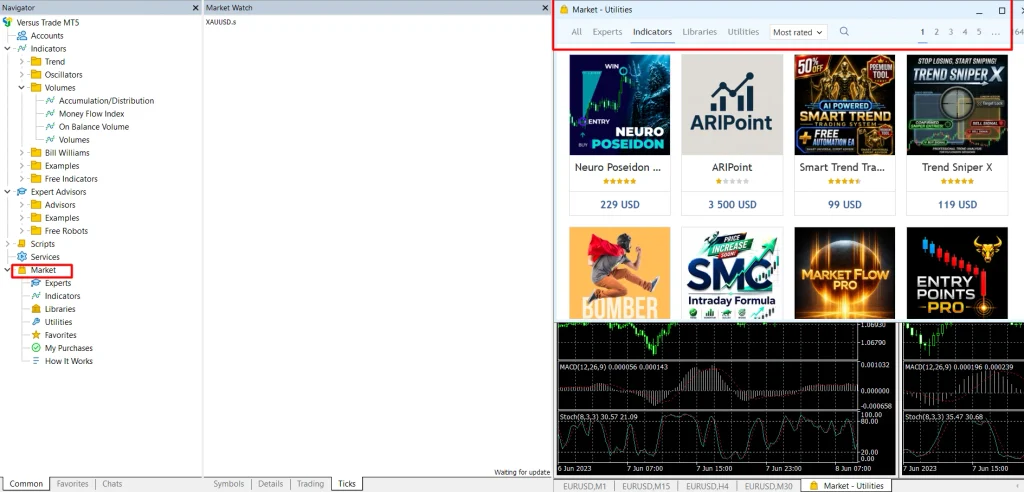
MQL5.community connects several services. The market is a store of applications for indicators, utilities, and trading applications. Signals supports copy trading, sometimes described as social trading, while virtual hosting can keep EAs and trading signals running when the local computer is offline. The community of traders also includes developers and programming services. Convenience does not replace due diligence.
Use the MT5 Mobile App Without Rebuilding Your Workflow
Monitor and Manage Trades on Mobile Devices
The same credentials can connect the desktop and the MT5 mobile app when the correct server is selected. The mobile platform supports quotes, charts, indicators, push notifications, and order management on mobile devices.
The phone version does not reproduce every desktop function. Expert Advisors do not run locally inside the standard trading app, and desktop specifications should not be assigned to it automatically. Mobile trading compresses analysis, making volume or direction errors easier to miss.
Android users can download Versus Trade MT5 and connect with the credentials supplied for their account. An iOS user follows the equivalent login logic in the official app.
Common Beginner Mistakes and MetaTrader 5 Help
Problems That Usually Come From Setup, Not the Platform
Several early errors look like software failures until the account details are checked:
- Logging in to the wrong server or using an investor password that does not permit trading.
- Opening a live position when the intention was to use a demo account.
- Treating volume as the amount of cash at risk.
- Activating one-click execution before learning the order controls.
- Expecting every broker to provide identical symbol names, quotes, and contract terms.
- Installing an untested EA from an unknown developer.
Find the Right Source of Support
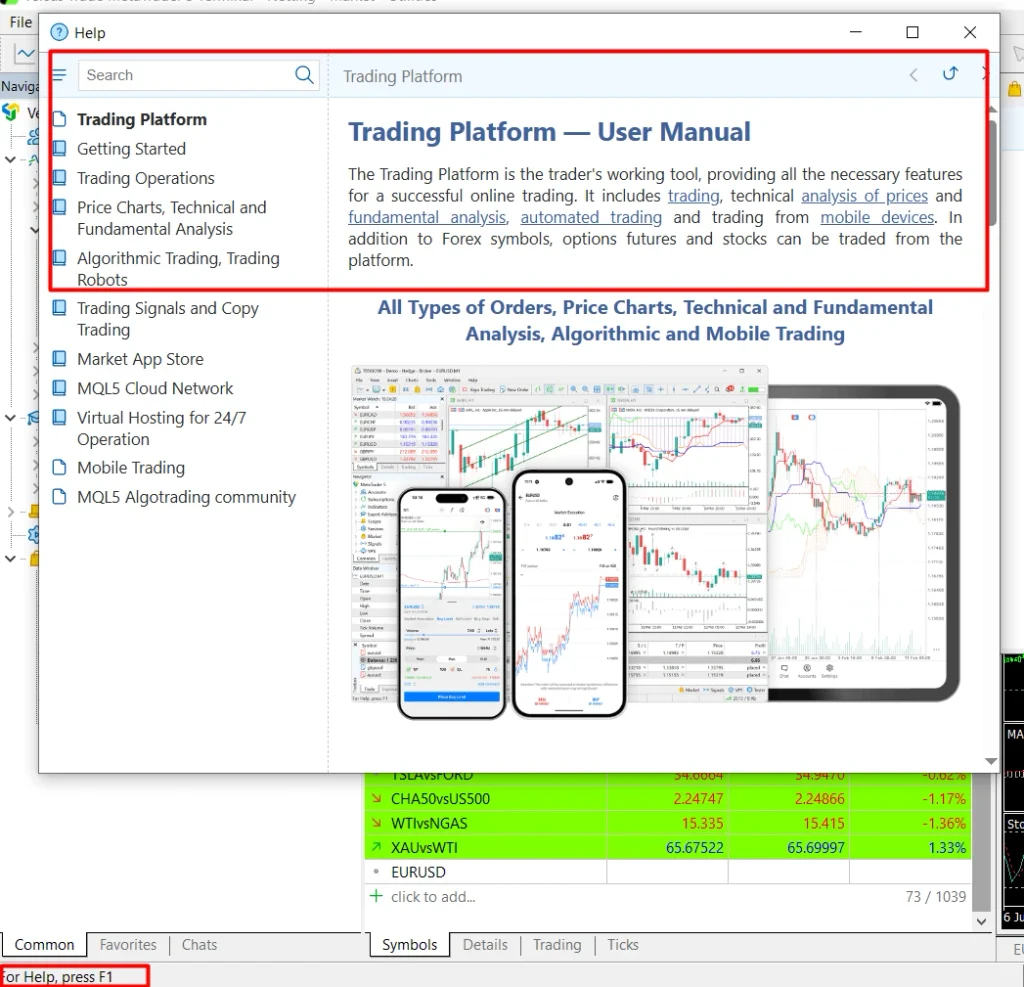
Official MetaTrader 5 help covers menus, orders, indicators, and the Strategy Tester. Provider support handles deposits, account access, symbols, server selection, and execution questions. Community resources help with code and custom tools but do not carry the authority of platform documentation.
Platform Fluency Comes Before More Complex Trading Strategies
Knowing the buttons does not create an edge, but it removes friction when a position is already moving. Demo repetition builds the same kind of sustainable routine discussed in Why Some People Grow Fast in Fintech — And Others Burn Out Just As Fast. The point is not speed for its own sake. It is reaching the correct control without turning a navigation or order-entry mistake into a trading loss.
Start Trading With a Clear MT5 Workflow
The first session needs a correct connection, a readable workspace, one inspected instrument, and one protected demo order. The position should then be modified, closed, and checked in the account history. That cycle exposes mistakes before real money is involved.
Automation, signal subscriptions, and elaborate indicator layouts can wait until the basic actions feel ordinary. Anyone ready to use MetaTrader 5 can explore platform access at Versus Trade, connect a demo account, and complete that first trading cycle before committing real funds.
Trade XAUUSD with spreads from 2.4p and zero commission per lot. When gold moves, trading costs shouldn’t steal the spotlight.

- What Is MT5 and How Does the Trading Platform Work?
- Getting Started: Install MetaTrader 5 and Connect Your Account
- Set Up the MT5 Trading Platform Workspace
- How to Read a Forex Chart and Add Technical Indicators
- How Do I Place and Manage Trades on MetaTrader 5?
- Manage Risk Before Funding a Live Account
- Automate Trading With Expert Advisors and MQL5 Tools
- Use the MT5 Mobile App Without Rebuilding Your Workflow
- Common Beginner Mistakes and MetaTrader 5 Help
- Platform Fluency Comes Before More Complex Trading Strategies
- Start Trading With a Clear MT5 Workflow