
MetaTrader 4 (MT4): Set It Up, Explore the Tools, See What MT5 Adds

You might spend time setting up charts in MetaTrader 4, then realize your new broker account uses MetaTrader 5. The login details, server names, and scripts won’t carry over on their own.
- MT4 is made by MetaQuotes, while a broker provides the trading account, server, and list of trading instruments.
- A free MT4 demo runs on virtual money. An MT5 demo needs an MT5 account and its matching server.
- Versus Trade’s practice path uses MT5. Downloading MT4 by itself won’t give you a Versus Trade MT4 login.
What is MetaTrader 4 (MT4), and how does the trading platform work?
MetaTrader 4 (MT4) is an online trading platform centered on price charts, orders, and technical analysis. MetaQuotes released it in 2005, and forex traders still know it for its compact layout: the Market Watch panel lists quotes, the Navigator stores tools, and the Terminal shows your open positions and trade history. The software comes from MetaQuotes, but each broker sets its own prices, symbols, spreads, and execution style. You can read about the core tools on MetaQuotes’ platform overview.
A beginner sees all of these tools in one place. Moving averages, the relative strength index (RSI), and Bollinger Bands describe how price has behaved, but they can’t forecast where it goes next. You get nine timeframes, plus market orders and pending orders. Which symbols appear in the terminal depends on your broker: some provide only forex trading, while others add CFDs, or contracts for difference, on an index, commodity, or another financial instrument.
Why MetaTrader 4 works for beginners
The MT4 trading platform keeps charts, orders, and account activity on a single screen. A beginner can use MT4 on a demo account before making a first trade with real money. People who use MetaTrader 4 also have access to a large community of traders sharing tutorials and indicators, but no tool removes market or leverage risk, whether you’re new or experienced.
Core tools and advantages of MT4
The MetaTrader 4 trading platform brings together charts, technical analysis tools, market and pending orders, alerts, and automated trading. It runs on desktop and mobile devices, and custom indicators add extra tools. Which trading instruments you can use comes down to your broker.
Explore the Versus Trade platform and discover the tools traders use to analyze markets, manage risk, and improve performance.

How to download MT4 for PC, Mac, and mobile
You can download MetaTrader 4 from MetaQuotes’ official download page. You can also download MT4 from an MT4-supporting broker’s website. The MT4 for PC installer is what most Windows users need. Some broker installers include the correct server. Be careful with files from chat rooms or search ads, because the publisher matters. A plain MetaQuotes demo is separate from a broker account.
MT4 for PC: Windows setup
- Get the Windows installer from MetaQuotes or an MT4-supporting broker’s website and run it.
- Finish the install and open the terminal. If an account wizard pops up, pick the right broker server or select a demo server to look around the platform.
- For existing login details, use File → Login to Trade Account. Type the account number, password, and exact server name that came with that account. Your MT4 account details come from your broker.
- Before you place orders, make sure quotes are updating in the Market Watch window and the terminal shows a connection.
The installation guide from MetaQuotes walks through the desktop installer. One common login problem has an easy explanation: the account belongs to MT5 or a different demo or live server. Reinstalling MT4 won’t make an MT5 login work.
Mac installation and mobile trading
The Mac installer from MetaQuotes sets up Wine automatically, so it isn’t a fully native Mac app. MetaQuotes says macOS Big Sur 11 is the minimum version, and it works on Apple silicon. Before you remove an older install, save your templates, indicators, and EAs.
For mobile trading, you can get MT4 for Android from MetaQuotes or its store listing. The MT4 iOS app covers iPhone and iPad users where it’s available. Phones show quotes and orders, though they can’t run MT4 desktop Expert Advisors. Availability in app stores changes by region.
The term “MT4 cloud” usually refers to broker web access or virtual hosting. A virtual private server, or VPS, can keep MT4 and eligible EAs running while your local PC is off, as long as you have a valid account and connection. MetaQuotes’ virtual hosting documentation covers the setup.
Set up a MetaTrader 4 demo account and learn the workspace
A MetaTrader 4 demo account gives you virtual funds to learn the interface, but it can’t promise the same order fills as a live account. MetaQuotes says you can open a demo from File → Open an Account or the account wizard when a server is available. The account number, password, and server name identify that particular demo. A MetaTrader 4 demo account is different from a real trading account. MetaQuotes’ account instructions list the steps.
Demo and live trading on MetaTrader 4: virtual funds and real money
MT4 itself doesn’t pay you anything. Profits from a demo account can’t be withdrawn. A live MT4 account uses real money, and your profits or losses will depend on market movements, trading costs, and how orders are executed. Prices, fees, and withdrawal rules come from the broker’s terms.
Read Market Watch, Navigator, and Terminal
Market Watch lists symbols with bid and ask prices. A chart can show timeframes from M1 up to monthly. Navigator stores indicators, scripts, EAs, and accounts. The Terminal panel keeps open positions and pending orders apart from completed trade history. A price that isn’t moving can mean a closed market, a hidden symbol, or a lost connection.
Customizing charts and using indicators in MetaTrader 4
To customize a chart, open Properties to adjust colors and display options, then select a timeframe. You can add an indicator like RSI or moving averages from Insert → Indicators or the Navigator panel. Use Charts → Indicators List to change their parameters or remove them. Save the whole setup as a template so you can reuse it. MetaQuotes’ chart instructions describe every setting.
Place and close a first demo trade
- Pick a currency pair in Market Watch and look at its contract specification, trading hours, and minimum volume.
- Open New Order, choose the volume, and decide to buy or sell right now, or set a pending order at a price level you choose. Immediate execution depends on your broker’s execution mode.
- Add a stop-loss and take-profit if your broker allows them, then check the quoted spread and order size.
- Send the demo order and watch the Trade tab for its status. To close the trade, use the position’s close command and confirm the result in Account History.
Starting forex trading on MetaTrader 4 with $100
A $100 balance might satisfy one broker’s minimum deposit while missing another broker’s margin requirement or minimum position size. MT4 has no universal starting amount. Spread, leverage, and position size shape the risk, and losses can eat up $100 fast. A demo account lets traders practice the order ticket before they start trading with real money.
For readers exploring a new account on Versus Trade, the MT5 Practice Account provides a way to test the broker’s supported platform and instruments with virtual funds, subject to account availability and local eligibility.
Indicators, expert advisors, and the limits of automation
MT4’s built-in MQL4 environment lets you automate parts of your trading by creating custom indicators and Expert Advisors (EAs), then testing them against historical price data. But an EA only does what its code says. Backtest results hang on the data quality, spread assumptions, and execution model you choose.
Versus Trade CEO and Co-Founder—Vitalii Bulynin
Source: FXStreet interview
An EA needs to be attached to the right chart and switched on inside the terminal before it does anything. Settings often vary by currency pair, timeframe, and the broker’s contract size. To run without interruption, the desktop terminal has to stay online, or you need a VPS. Mobile devices let you keep an eye on open positions, but they can’t execute desktop MQL4 programs. Alerts and notifications may help you spot execution problems. They won’t fix weak trading strategies or connection drops.
Enter the market accessibly. Start a Standard Account from just $10 and take it from there.

MT4 vs MT5: when does an upgrade make sense?
The MT4 vs MT5 question often comes up at account opening, when a trader’s familiar scripts meet the broker’s current platform choice. MT5 has more built-in chart timeframes, analytical tools, and a strategy tester. Expert Advisors and custom indicators for MT5 use MQL5, so existing MQL4 programs won’t run there without being changed. You cannot use an MT4 login to access an MT5 server either. The MT4 vs MT5 guide explores those distinctions.
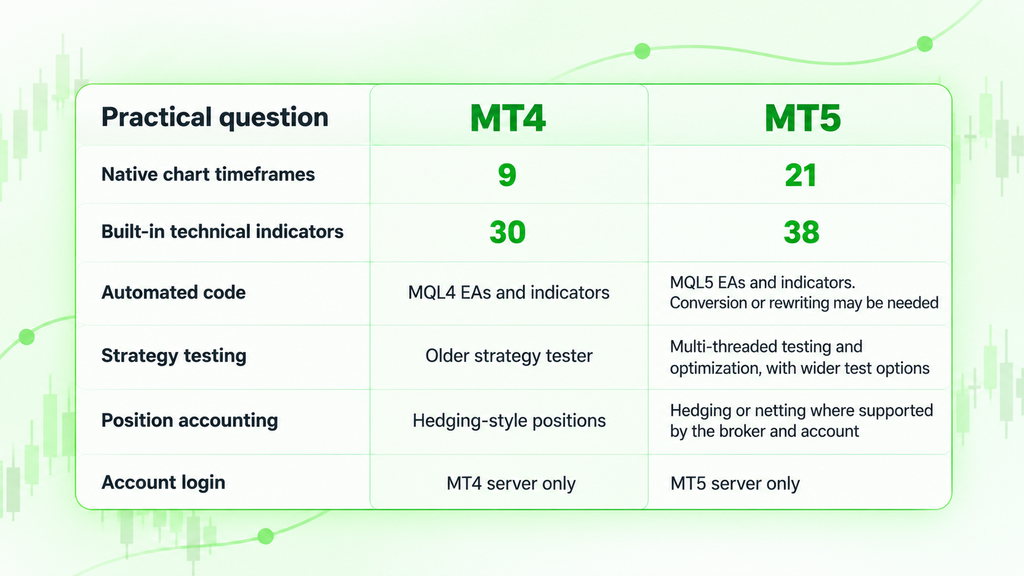
The figures are taken from MetaQuotes’ platform guides: The MetaTrader 4 platform offers nine timeframes and 30 integrated indicators, while the MetaTrader 5 platform provides 21 timeframes and 38 integrated indicators. The availability of markets, order settings, and the MT5 position-accounting mode are still dependent on the broker and account. Hedging has been supported by MT5 since 2016, so the idea that only MT4 can hold opposite positions is outdated.
MetaQuotes CEO explained the split when MT5 added hedging:
MetaQuotes CEO—Renat Fatkhullin
Source: MetaQuotes announcement
Moving a workflow to Versus Trade on MT5
Opening a separate MT5 account does not automatically transfer an MT4 account. The same goes for its positions or its trading history. An account migration may be offered by a broker, but what is moved depends on that broker’s process. If you use custom EAs, you’ll need an MQL5 version, a rewrite, or a different tool, and then test it against the MT5 account’s execution rules and instrument specs. You may also need to rebuild templates and chart layouts.
A typical starting point: open an eligible MT5 demo, install the broker’s MT5 terminal, pick the right server, and rebuild one chart you know well before you test any order entry. Versus Trade’s How to Use MT5 Guide walks through the new interface. The Forex trading platform page describes which markets are available. Once your live account gets approved, the separate guide on how to transfer funds to Metatrader 5 explains the funding steps. Funding won’t shift balances over from an unrelated MT4 broker.
For traders in Thailand, the next step is to look at the platforms and account options that are right for them. Versus Trade offers resources to help you get started with MT5, while readers interested in working with the brand can explore its Introducing Broker partnership.
A practical platform upgrade test is simple: log in on the correct server, recreate a chart you know, place and close a demo order, then check the account’s trading conditions. Versus Trade publishes its current account details and gives MT5 access for forex trading. MT4 still helps you understand a big legacy ecosystem, but MT5 is the trading platform to evaluate for a new account with this broker.